


Figma: view. comment. mirror.
4.1432.00 Reviews
App Specs
- Version
- 26.31.0
- Updated On
- License
- Free
- Downloads
- 5,000,000+
- Developer
- Figma Inc.
- Categories
- Art & Design
- Platform
- Android, iOS
Screenshots
 Analysis by AppCompare
I reach for a phone companion to a design tool when I need to check a file, follow a discussion, or show a screen without opening a laptop. That is the useful role of Figma: view. comment. mirror.: it brings project access and collaboration into a mobile setting, rather than trying to turn a phone into a full design workstation. In my experience, that distinction matters. It works best when I already have a Figma workflow and want to stay connected to it while away from my desk.
What free access means in practice
The app is free to download, so trying it does not require a purchase. That makes it easy to see whether mobile access fits your routine before relying on it for work. I would treat that as free access to the app, not as a promise that every Figma service or team arrangement has no cost; the practical value depends on the files and collaboration setup you already use.
Figma Inc. is the developer, and the app sits in the art and design space. It has an average rating of 4.3 from around 61,000 ratings, with more than five million installs. Those figures suggest it is a familiar companion for many users, but they do not tell me whether it suits a particular project. The more important question is whether you need to review and discuss design work from your phone.
A companion, not a pocket-sized desktop
The app’s strongest use is keeping a Figma project within reach. I can imagine checking a prototype before a meeting, opening a file when a teammate asks for a quick opinion, or reviewing a comment thread while commuting. This is a different job from creating a detailed layout from scratch. A phone is handy for access and review, but the screen and touch controls make precision-heavy design work less comfortable than on a computer.
That difference is useful to understand before installing. If your goal is to inspect, present, or discuss existing work, a mobile companion can remove small delays from the day. If you expect to build complex screens, carefully adjust many elements, or manage a large design system entirely on a phone, I would keep a desktop workflow available. The mobile app adds flexibility; it does not make every task equally pleasant on a smaller screen.
Using the app as part of a real workflow
I use this section to think through when the phone app earns a place in my routine: not as a substitute for focused desktop design, but as a way to arrive at a conversation prepared. Opening the exact screen ahead of time and keeping feedback tied to a specific question can make a brief review more productive, especially when the next step is returning to the main workspace to act on it.
Seamless Design Viewing
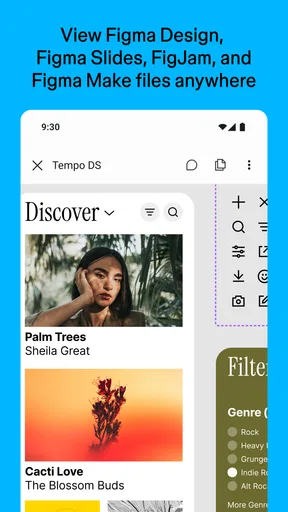
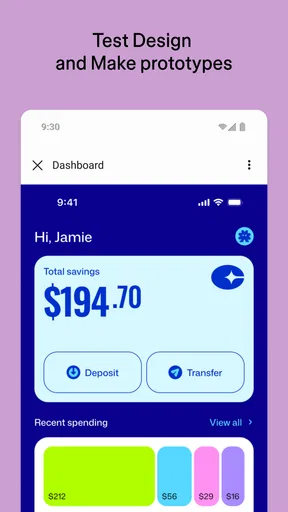
The first thing that struck me about Figma: view. comment. mirror. is how effortlessly it lets you view your designs. You can literally access any Figma file with just a few taps. Imagine being in a meeting and needing to pull up a design to make a point. Boom! It’s there in your hands. The app mirrors your desktop projects perfectly, so no more squinting at tiny details on your phone screen.
Worth Reading Before You Choose

EA SPORTS FC Mobile 26 Is a Bigger Football Game, but It Takes Time

Flipboard Shows What News Apps Must Do Beyond the Feed

Switching to Android Auto Means Rethinking Your Driving Routine

Google Calendar Makes a Crowded Week Easier to Manage

Ludo King Makes the Most of the Minutes Between Plans

Baby Panda World Brings Quick Play to Modern Phones, but Its Game Library Feels Busy
For a useful meeting routine, I would open the relevant file before the discussion starts and make sure I am looking at the right page or screen. A design file can contain more than the single view everyone has in mind, so a little preparation is better than searching while people wait. On a phone, it also helps to focus the conversation on the overall flow, hierarchy, or a specific interaction rather than trying to judge tiny spacing details from a zoomed-out view.
Commenting Made Easy
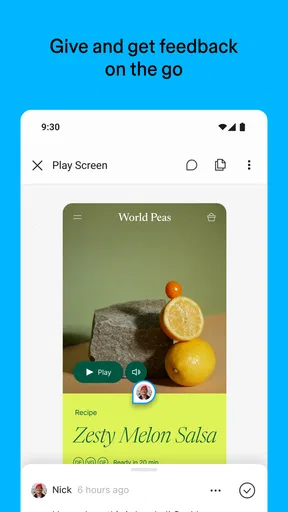
Now, let's talk about feedback. We all know that getting timely feedback can make or break a project. With this app, commenting is as easy as sending a text. You can leave comments directly on the design, and the best part? Notifications pop up immediately, so you’re always in the loop. It’s like having a mini design meeting in your pocket!
The practical advantage of placing a note on the design is context: a teammate can see which part of the work you mean instead of guessing from a message such as “the button feels off.” I would use comments for focused observations, decisions, and questions that need to stay attached to the work. For a broad conversation involving several possible directions, a call or a longer written discussion may still be clearer. Mobile feedback is most helpful when it is specific enough to act on.
Real-Time Mirroring
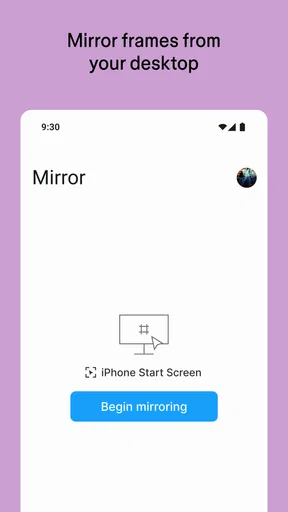
One of my favorite features is the real-time mirroring. It’s like having a live preview of your design work as you make changes. This is incredibly useful when you want to see how your designs look on actual mobile devices. It’s all about catching those little details that can make a huge difference in the final product.
Mirroring is particularly useful when a designer wants to check how a screen reads at phone scale rather than relying only on a large desktop canvas. I would use it to spot a crowded heading, an awkwardly long label, or a layout that feels different once viewed at a realistic size. It is a visual check, not a substitute for testing every interaction or validating a finished product across all conditions. That boundary keeps the feature useful without asking it to answer questions it is not designed to settle.
User-Friendly Interface
The interface is clean and intuitive, just like the desktop version of Figma. You don’t have to spend hours figuring out how to navigate through the app. Everything is right where you expect it to be. The developers really nailed the user experience here.
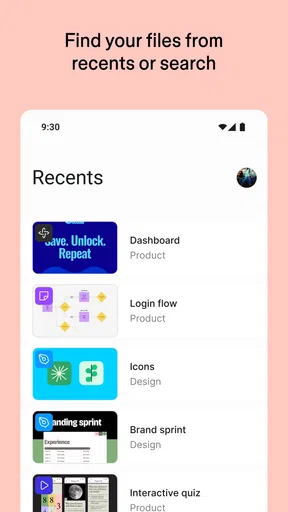
Even so, mobile navigation and a large project library can make finding the right file the slowest part of a quick review. I find organization pays off before the phone comes out: sensible file names and clear project groupings reduce hunting, especially when someone asks for a specific screen on the spot. If you regularly work across several projects, a little tidying in your usual Figma workspace can improve the mobile experience more than trying to navigate faster.
Collaboration on the Go
Collaboration has never been easier. Whether you’re working with a team or getting feedback from a client, Figma: view. comment. mirror. makes it a breeze. You can share files instantly, and everyone sees the latest version. It’s like having a virtual workspace that you can carry around.
A realistic example is a designer taking a client through a prototype in a café, then capturing a precise note while the client points out a confusing step. The designer can return to the desk later with that feedback attached to the relevant work, instead of trying to reconstruct it from memory. For a team, the same approach can help during a quick review between scheduled meetings. I would still confirm that the people involved can access the project before depending on it in a live presentation; smooth collaboration relies on the right file and participants being ready.
Where it fits among design tools
Compared with a static image viewer or a folder of exported screenshots, a Figma companion is more useful when the work is still changing and discussion needs to stay close to the design. Screenshots can be simpler for sharing a fixed visual or keeping a quick reference, while a desktop design tool is the better place for detailed construction and editing. This app sits between those habits: it helps me reach active design work away from my computer, without replacing the focused workspace where I make careful changes.
That makes it a particularly good fit for designers, product teammates, and clients who already review work in Figma. It is less compelling if you only need to look at finished images, rarely collaborate on interface work, or want a full mobile editor for creating polished layouts. In those cases, a gallery or an editing app built around direct creation may be a more natural choice. The best tool is the one that matches the task, and this one is strongest when the task is viewing and discussing Figma work.
Some Handy Tips
If you’re new to the app, here’s a pro tip: make sure your files are organized before you start mirroring them. It makes navigation so much easier. Also, don’t forget to sync your files before heading out; it ensures you have the latest updates when you’re offline.
I would make one small habit of opening the exact file and screen I plan to discuss before leaving a reliable connection. That avoids turning a short review into a search through several projects. For feedback, I also try to phrase a mobile comment around one clear action or question. A short, anchored note is easier for a teammate to interpret later than several vague reactions added in a hurry.
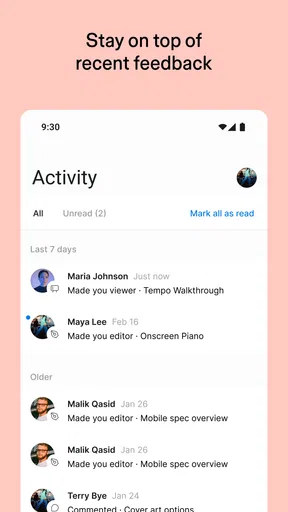
Another thing to keep in mind is adjusting your notification settings. You don’t want to be bombarded with alerts, but you also don’t want to miss important updates. Find that sweet spot that works for you.
Who should keep it installed?
I would recommend it most to people who already use Figma and often need to review work away from a computer: designers checking a prototype, teammates adding feedback, or clients who want to follow a design discussion. For a student or someone learning interface design, it can also be a convenient way to look through a project and understand how screens fit together, while the actual detailed work remains easier on a larger display.
I would skip it if you have no Figma projects to view, prefer to work entirely in another design ecosystem, or expect your phone to handle all the precise editing in your workflow. It is also not the right answer when a static export is all you need; opening a collaborative project can be unnecessary if the goal is simply to show one finished image. Picking the lighter option for a simple task is often more efficient.
The Bottom Line
In a nutshell, Figma: view. comment. mirror. is a game-changer for anyone who works with design. It brings a level of flexibility and convenience that’s hard to beat. Whether you’re a seasoned designer or just starting out, this app is worth checking out.
My recommendation is more specific: it is worth trying if mobile access to active Figma work would save you from waiting until you are back at your desk. Its value comes from being a practical companion for review and collaboration, not from replacing the main design workspace. The app is free, rated for Everyone, and its current version is 26.19.0; it runs on Android 8.0 or later. I would install it for convenient project access, then judge it by how often I actually use that access in my week.
So, if you haven’t tried it yet, give it a spin. It’s available for both Android and iOS, and I promise it’ll make your design process smoother and more efficient. Happy designing!
Pros
- User-friendly interface enhances productivity.
- Real-time collaboration with team members.
- Cross-platform support for Android and iOS.
- Efficient design review and feedback tools.
- Offline mode available for design access.
Cons
- Requires internet for most features.
- Limited features in free version.
- Mobile app lacks full desktop capabilities.
- Occasional sync issues with large files.
- Learning curve for new users.
FAQs for Figma: view. comment. mirror.
What is Figma: view. comment. mirror. used for?
Figma: view. comment. mirror. is a companion app designed for users who work with Figma, a popular design tool. This app allows you to view designs, provide feedback by commenting, and mirror your designs on a mobile device to see how they look in a real-world context. It’s particularly useful for designers who need to collaborate with team members or clients remotely.
Can I edit my designs directly in the Figma app?
No, the Figma: view. comment. mirror. app is primarily for viewing, commenting, and mirroring designs on mobile devices. It does not support direct editing of designs. To edit your designs, you will need to use the Figma desktop application or web version. The app is specifically tailored for collaboration and presentation purposes.
Is Figma: view. comment. mirror. free to use?
Yes, the app itself is free to download and use. However, access to certain features might depend on your Figma account plan. Figma offers both free and premium subscription options, with the premium plans providing additional features like unlimited projects and advanced collaboration tools. Check your account settings to see what features are available to you.
Does the app work offline?
Figma: view. comment. mirror. requires an internet connection to sync designs and updates. While it may cache some data temporarily, full functionality, including viewing the latest changes, commenting, and mirroring, requires being online. This ensures that you are always working with the most current version of your designs.
What devices are compatible with Figma: view. comment. mirror.?
The app is available for both Android and iOS devices, making it accessible to a wide range of users. Ensure your device is running a compatible version of the operating system to guarantee the app functions smoothly. Always check the app store for the latest compatibility requirements before downloading.


